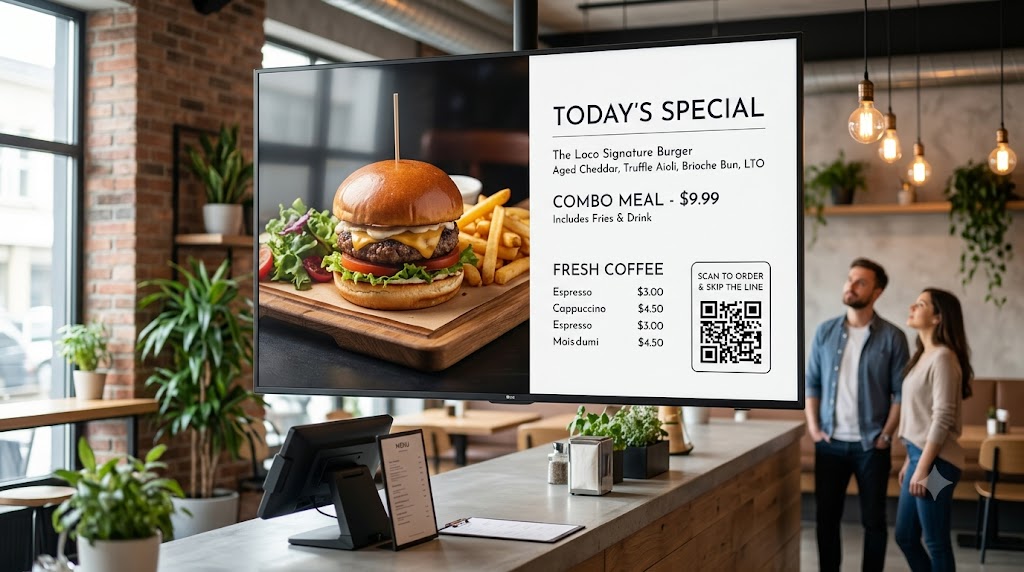
Amazon Fire TV Stick is no longer just a streaming device for entertainment. Today, thousands of smart business owners use it to power high-converting digital menu boards, promotional video loops, company announcements, waiting room screens, and live queue displays.
If you already own an Amazon Fire TV Stick, you already have 90% of the hardware you need. You don’t need to spend $300 to $500 on commercial media boxes or hire AV installers. With Loco Digital Signage, you can transform any TV into a professional business display that you control remotely from anywhere in the world.
Want to Test Your Fire TV Display Right Now?
Install Loco on your Fire TV Stick and mobile phone. Pair with a 6-digit code and broadcast your first promo screen in 3 minutes.
Start Free Trial — No Credit Card NeededWhy Use Fire TV Stick for Digital Signage?
Amazon Fire TV Stick is one of the most affordable, accessible, and reliable media players available. Simply connect it to any HDMI-enabled TV, link to WiFi, and install Loco Digital Signage to instantly modernize your business space.
Fire TV Stick is ideal for displaying:
- Promotional offers & discounts
- Digital menu boards
- Company announcements
- Welcome messages & guest names
- Event & class schedules
- High-res image slideshows
- Live web pages & analytical dashboards
- PDF catalogs & flyers
- Real-time Order & Token Numbers
- Training & promotional video loops
Whether you manage one TV in a reception lobby or hundreds of displays across multiple franchise branches, Fire TV Stick combined with Loco Digital Signage delivers enterprise-level capabilities without enterprise costs.
Essential Features of the Best Fire TV Signage App
Selecting the right digital signage software is just as critical as choosing your TV hardware. Here is what sets Loco Digital Signage apart as the premier choice for Fire TV Stick:
Remote Screen Control From Anywhere
Update your Fire TV displays from your phone, tablet, or Mac dashboard whether you are at the store, at home, or traveling. No more climbing ladders or plugging USB thumb drives into the back of your TVs whenever prices or promos change.
24/7 Offline Playback Resilience
Never worry about blank screens or internet error messages. Once your content synchronizes, it plays continuously directly from your Fire TV Stick's internal storage — keeping your displays 100% active even during ISP outages.
Multi-Zone Split Screen & Order Tokens
Display promotional video loops on one section of your screen while calling real-time order queue tokens or displaying announcements on another section simultaneously. Perfect for restaurants, clinics, pharmacies, and service centers.
Automated Content Scheduling
Set breakfast, lunch, and dinner menus or daily promotional campaigns to switch automatically at exact times without manual intervention.
Why Business Owners Choose Loco Digital Signage
Loco Digital Signage is engineered to eliminate the complexity of business display management.
Key Advantages of Loco Digital Signage:
- Remote Cloud & Local LAN Modes: Publish over global cloud remote control or restricted local WiFi networks.
- Instant Device Pairing: Connect controllers to smart TVs in seconds using QR Codes or 6-digit Connection Codes. Check out our step-by-step pairing guide.
- Multi-Platform Support: Works natively on Amazon Fire TV, Android TV, Google TV, and Apple TV (tvOS).
- Support for All Major Formats: MP4 4K Videos, Images (JPG, PNG, WebP), PDFs, URLs, and Slideshows.
- Transparent Per-Screen Pricing: Flat rates per active screen with no hidden hardware lock-ins. View our pricing plans.
How to Set Up Loco on Fire TV Stick in 3 Simple Steps
Getting your digital signage up and running takes less than 3 minutes:
Install Apps
Search for Loco Digital Signage Player on your Fire TV Stick (Amazon Appstore) and download Loco Digital Signage on your phone.
Pair Devices
Open Loco on your Fire TV Stick. Scan the on-screen QR Code with your phone camera or enter the 6-digit Connection Code to link instantly.
Publish Live
Upload images, videos, or menus in the mobile app and tap publish! Your Fire TV Stick updates automatically in real-time.
Tailored Solutions for Every Industry
Explore how different industries use Loco Digital Signage solutions to boost sales and customer engagement:
Follow Loco Signage on Google
Add Loco Signage as a Preferred Source to get our latest guides & tutorials directly in Google Search & AI Overviews.
Try Loco Digital Signage Free Today!
Turn your Amazon Fire TV Stick into a professional, remote-controlled business display screen in under 3 minutes. Experience the full power of Loco Digital Signage completely free.
Free trial available • No credit card required • Instant QR pairing